We all love a night in watching our favourite quiz show, feeling super clever about every answer we know. But have you ever wondered how you would handle being a quiz show contestant? Well, with our free "Who wants to be a Millionaire" (WWTBAM) game template for PowerPoint you can finally find out!

Full Game experience
We reconstructed the original look and feel of "Who wants to be a millionaire" to make it as realistic as possibly possible. The PowerPoint template is designed to look like the screens in the show and even animates neatly. The cherry on top are the sound effects, which are also original and will get you in that perfectly focused quiz mood. Here you can see the result when you start the presentation (be sure to turn up the volume!):
Free Download
Here you can download the blank PowerPoint template:
How to use the template with SlideLizard
To play the quiz, questions and answers must first be customized. If you want to enable your participants to participate with their smartphones (our recommendation!), then read on here. If you want to use the template without live interaction, you can find here a tutorial to customize it.
Audience participation with smartphone
By downloading our template, you are pretty much ready to go. You can use the template as it is and just let the
contestants shout out their answers. But especially when there's more than one participant we recommend playing
the game with an interactive polling tool like SlideLizard , where your attendees can vote for
the right answer with their phones. SlideLizard is directly integrated in PowerPoint, so it works perfectly with the
template.
Important:
The game is meant to be played with your whole audience or a bigger group of people, not just one contestant. This
is the reason why the money indicator goes up after every question: there will always be people who get the answer
right, just like there will be some who get it wrong. Either way, the game is designed to be played until the end,
so participants answer all 14 questions and the game ends at 1.000.000$. Counting the right answers has to be done
manually for now. However, soon it will be possible to count the correct answers per attendee automatically, and
show an overall ranking at the end.

Attendees answer the Quiz questions live on their smartphones with SlideLizard
Customize questions and answers
- Connect the PowerPoint presentation to SlideLizard. Go to the SlideLizard tab in PowerPoint and click "Link to
SlideLizard" in the top left corner.
![]()
- Under Polls and Quizzes, you can create quiz questions. Create as many questions as there are in the
template (that is 14). IMPORTANT: Select "Single-Choice Quiz" as the type for each question. You don't have to
create all the questions right away, you can edit them later.
![]()
- In order to generate the QR-Code and link on the info slide for your audience to participate, click on "Update"
in the SlideLizard-Tab.
![]()
- Go to the first question slide and in the SlideLizard-Tab set Action: Conduct poll; Poll: pick one
of the questions you previously created. The question and answer texts are now automatically inserted on the
slide.
![]()
- On the next slide (= the answer slide), set Action: Show poll results; Poll: pick the same
question as on the previous slide.
![]()
- Display the correct answer: Click on the box with the answer that is preset as green. Go to the Shape
Format Tab in PowerPoint and under Shape Fill, select black as color.
![]()
- Click on the box that contains the right answer. Under Shape Fill, select the light green color.
![]()
- Again, go to the next slide (= result slide), set Action: Conduct poll; Poll: pick one of the questions
you previously created.
![]()
![]()
- Redo the last steps for all other questions. Then you are ready to play!


Please note that very long questions or answers can break the template, so if possible, keep questions and answers on the shorter side.


Play without interaction
- Go through the slides and type in your questions and answers manually.
![]()
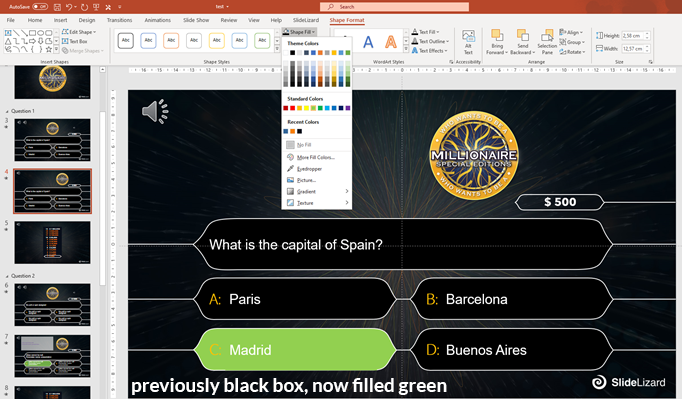
- Display the correct answer: Click on the box with the answer that is preset as green. Go to the Shape
Format Tab in PowerPoint and under Shape Fill, select black as color.
![]()
- Click on the box that contains the right answer. Under Shape Fill, select the light green color.
- Remove the result slides (which shows a chart showing how many percent of the audience choose which answer if you use SlideLizard for allowing the audience to participate)
- Redo the last steps for all other questions. Then you are ready to play!

Sound Effects
The template comes with cool original sound effects from the show, which every fan will immediately recognize and
make you feel like you are a live participant. All effects are configured to start automatically on each slide.
However, if don't want them, you can easily remove them entirely or use other sounds which are more to your
liking.
Note: There are no jokers in this template.
Deactivate Sound
If you do not want to do the quiz with the music (or if you'd like other music), you can
- Simply turn off the speakers/the volume of your computer
- Disable the sound effects within PowerPoint. To do so, click on the sound icons on the top left corner of the slides and delete them.
Use different sound effects
Here's a list of additional original sounds:

Quiz Question Ideas

If you don't feel like making up your own questions, that's not a problem! In a recent blog post we listed 50 great quiz ideas that you can simply add to our Who wants to be a Millionaire template to make the game even more fun: Creative Quiz Questions Ideas


