
The Corporate Design is essentially the “packaging” of a company. It immediately communicates what a company stands for and creates recognition and trust. More on this topic: Corporate Design in Presentations - the Key to Strengthening Corporate Identity
But what happens when a company’s design changes? That’s called a rebranding. There are many reasons for it: maybe the company name has changed, the logo has been modernized, or the color scheme has been redefined. In this case, all company materials need to be adapted to the new design – especially the PowerPoint presentations that are used daily.
However, there’s a major challenge here: updating all presentations and slides manually is extremely time-consuming and error-prone. There are two ways to handle this task more efficiently: either by using the Slide Master view in PowerPoint – which is rather tedious and time-consuming – or much more easily with the SlideLizard CREATOR and its CI Guide feature. This ensures that the new Corporate Design is quickly, efficiently, and consistently applied to all presentations.
-
Content
1. Prepare for rebranding: Collect brand elements for the new PowerPoint design
Before you adapt your PowerPoint presentations to your new Corporate Design, you should organize all important brand elements in a structured way.

A corporate Design Manual has the following things:
- Color palette
- Fonts
- Logo
- Illustrations, shapes & icons
- Images
- ...
To keep it as clear as possible for employees, it’s best to create a folder called Corporate Identity and then add subfolders for each brand element:

2. Bring PowerPoint slides into the new design: Get started with the Slide Master
Once all design elements are ready, it’s time to implement them in PowerPoint. Using the Slide Master, you can bring your presentations into the new design step by step.
View > Master Views > Slide Master

The Slide Master is the template for the entire presentation – for example, if you change the heading color to light green, then after exiting the Slide Master view, all headings will appear light green.
With the Slide Master, however, you can adjust far more than just the font color.
3. Implement PowerPoint rebranding: Design the master slide in the new Corporate Design
In the Slide Master, you can centrally adjust all design elements for your presentations.
Scroll to the very top in the Slide Master on the left and select the first slide – the master slide. Make sure you always have this slide selected when making changes to guarantee a consistent design.
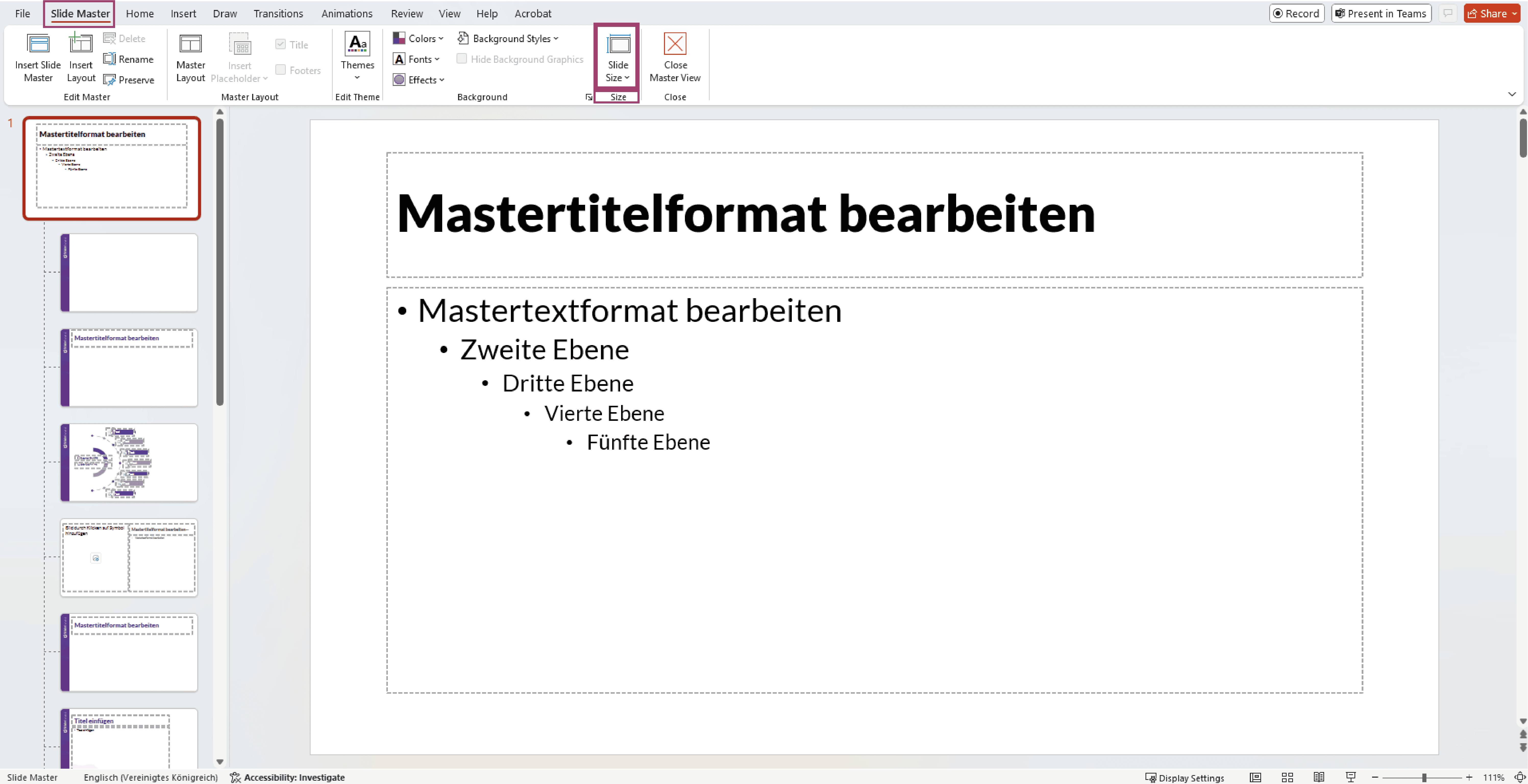
- Slide Size
Slide Master > Size > Slide Size > Custom Slide Size
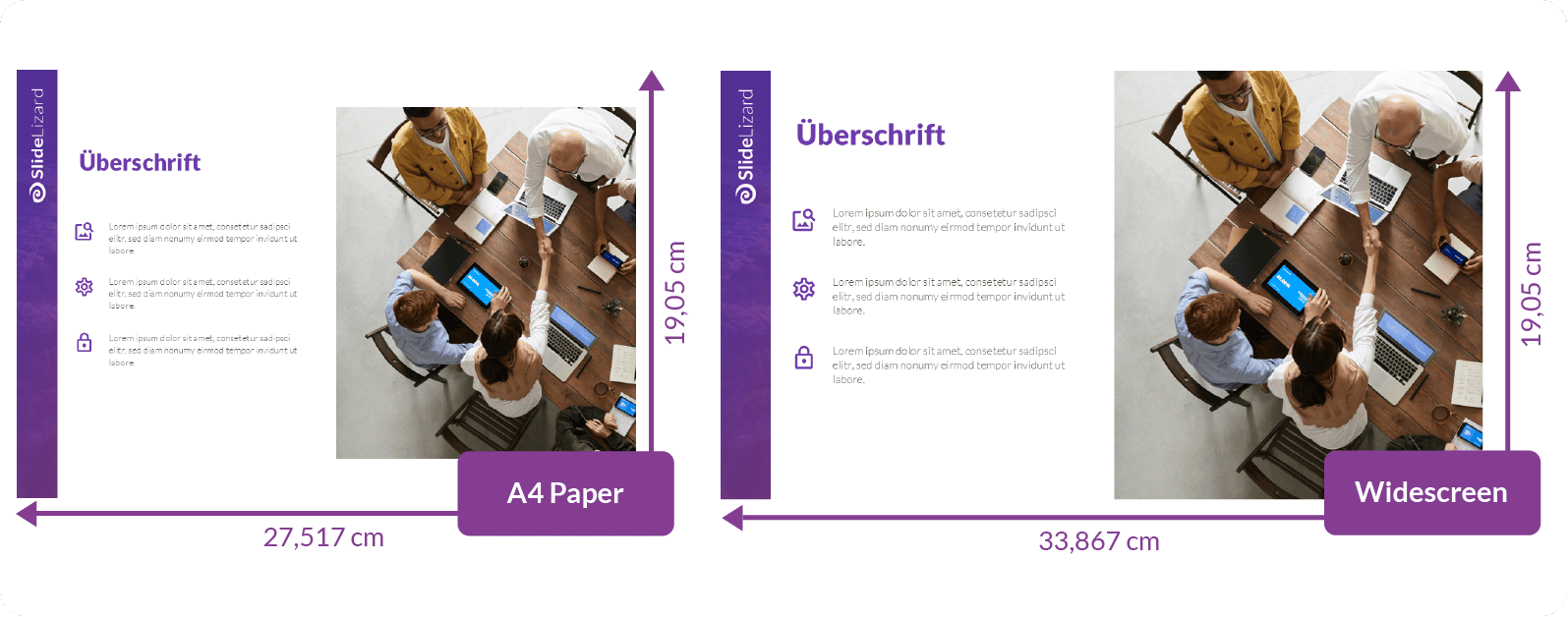
Rebranding often requires changing the slide format.. This varies by company, but generally A4 is recommended. The widescreen 16:9 format is also very common.
- Fonts
Back in the main Slide Master view:
Background > Fonts > Customize Fonts
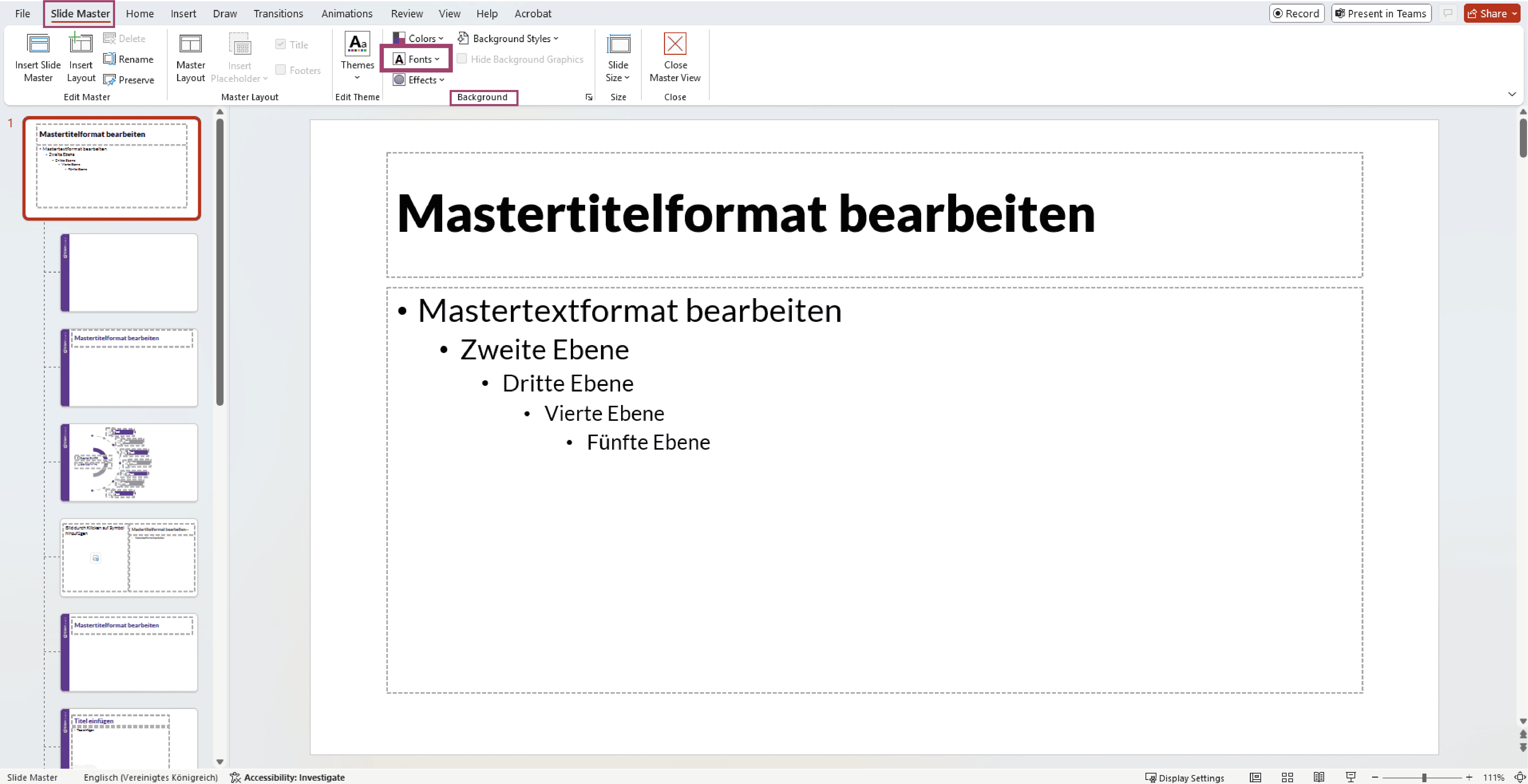
Stick to the brand elements you prepared – the necessary fonts should be specified there. On the first slide (the Master Slide), select the text and change it as needed.
Learn here how you embed fonts: 10 Tips and Tricks for successful PowerPoint Presentations
- Color Palette
Is your company known for a distinctive color or a specific color scheme? This is the perfect place to adapt it to your company!
Background > Colors > Customize Colors
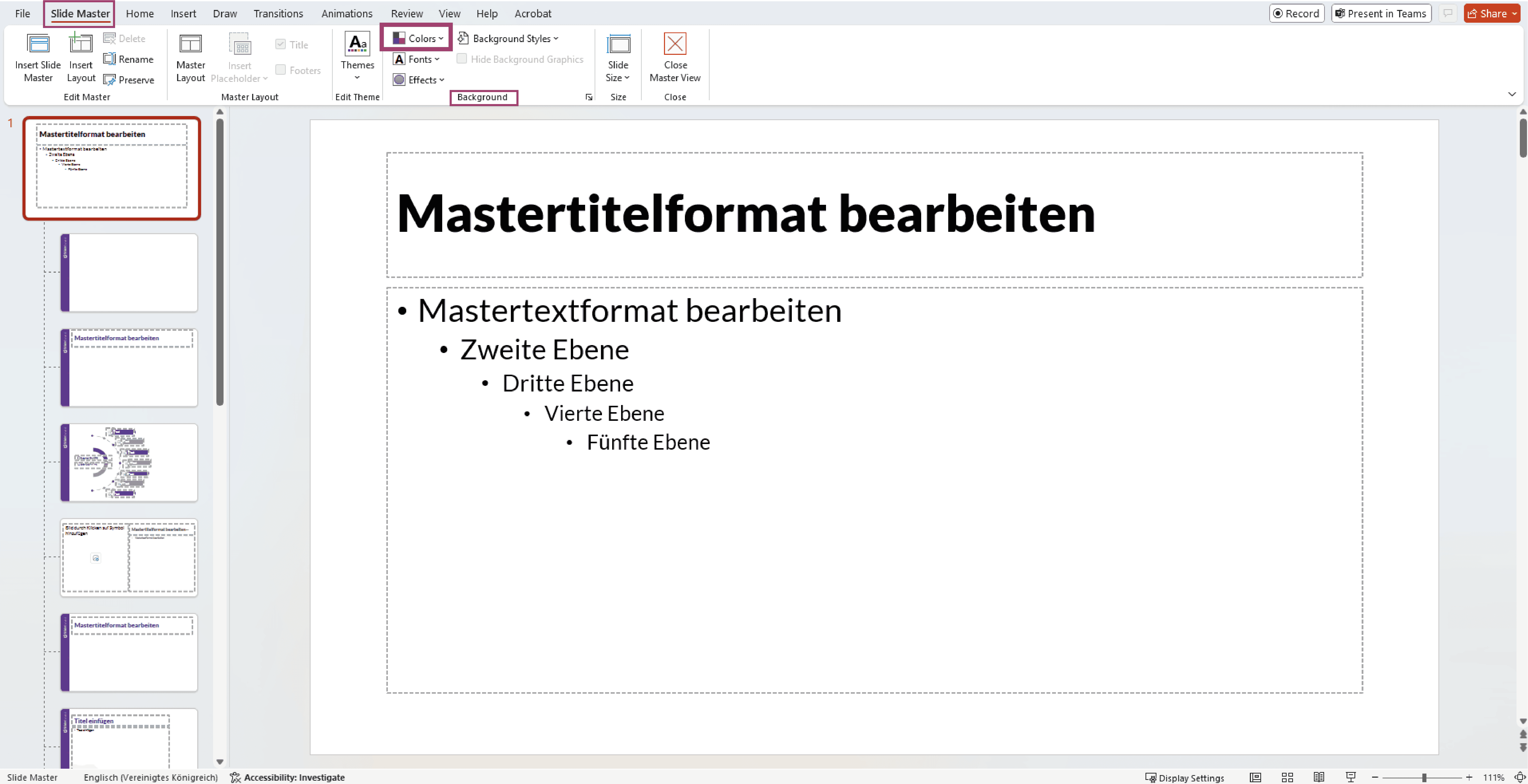
Again, stick to the approved colors in your folder.
- Define Text Boxes
You can also adjust the size or position of text boxes. Make sure every text box is visible under:
Slide Master > Master Layout > Master Layout
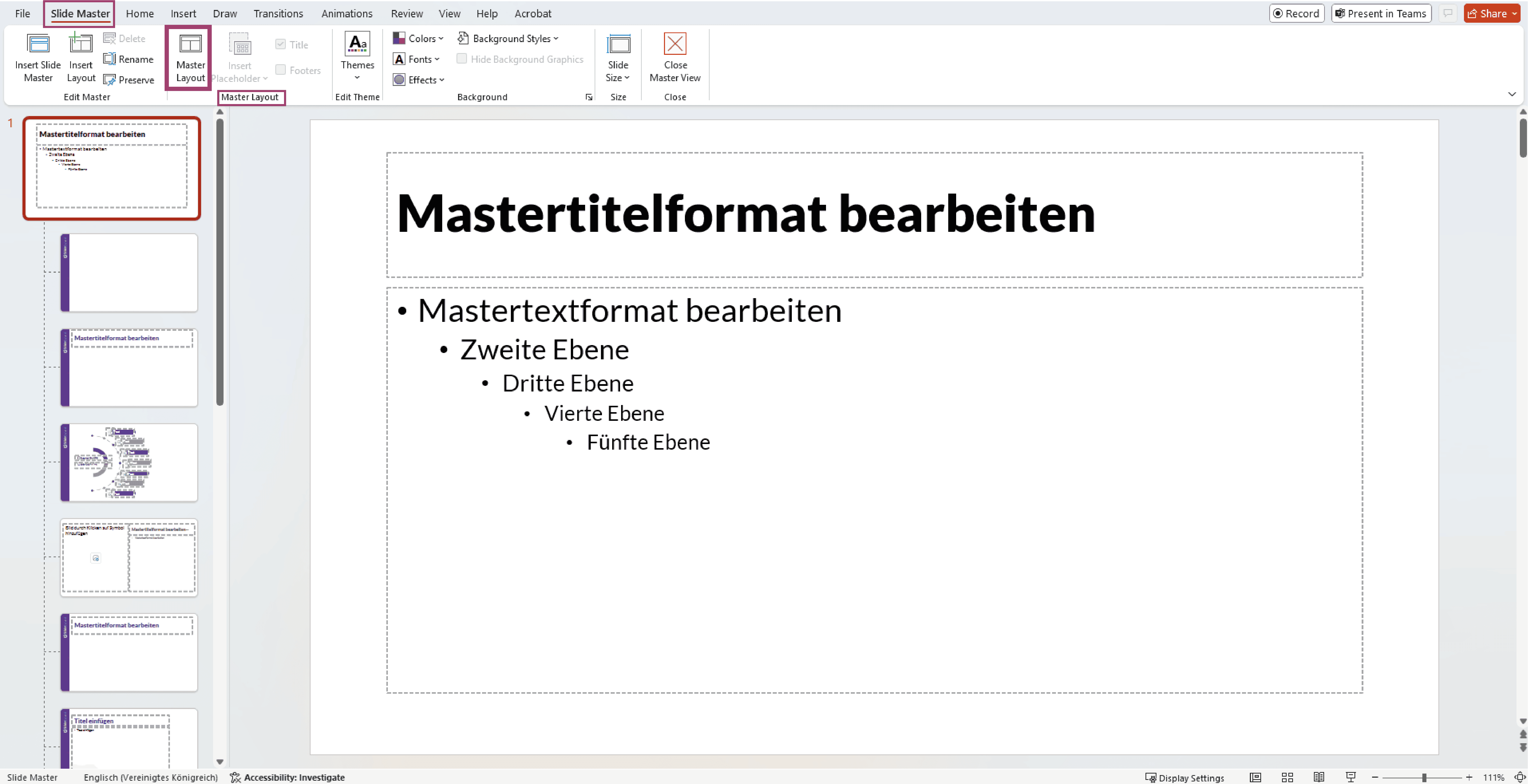
You can also customize the text within the boxes and adjust the text levels. Change bullet points or numbering formats:
Home > Paragraph > Bullets and Numbering
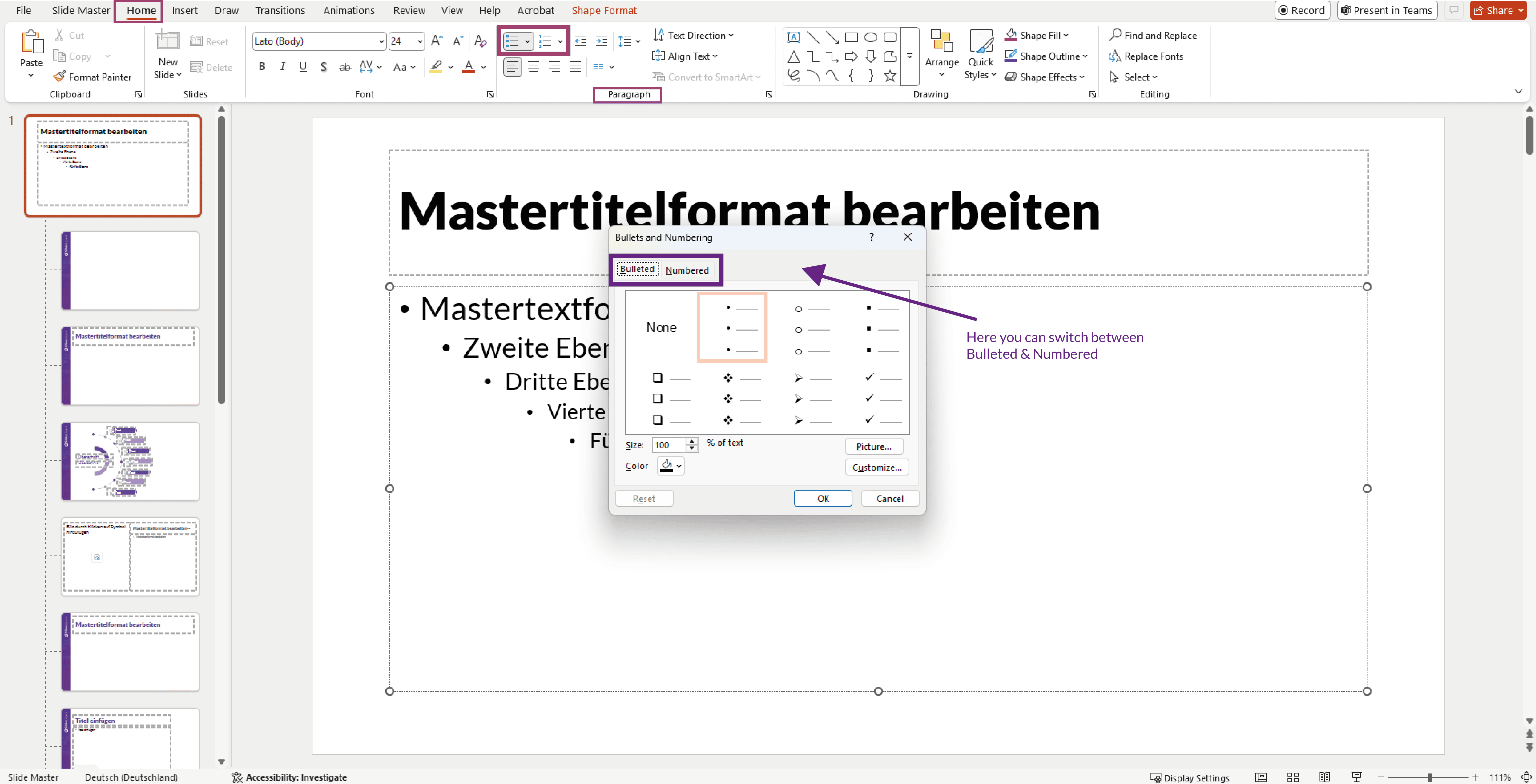
Here you can switch between numbers and bullet points at the top.
- Insert Logo
Whether it’s a new presentation or the logo has changed during the rebranding – you’ll need to insert the logo:
Insert > Images > Pictures > This Device
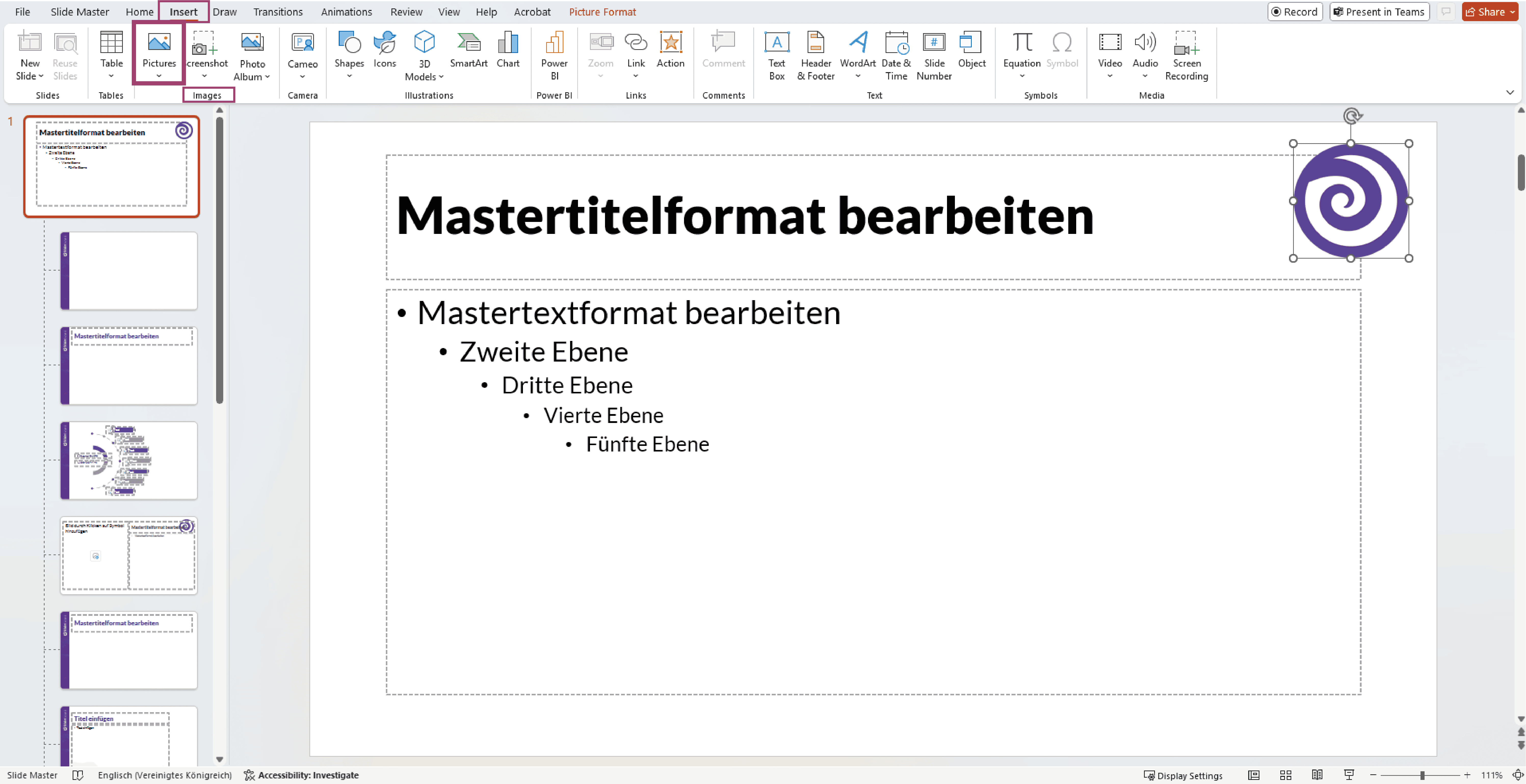
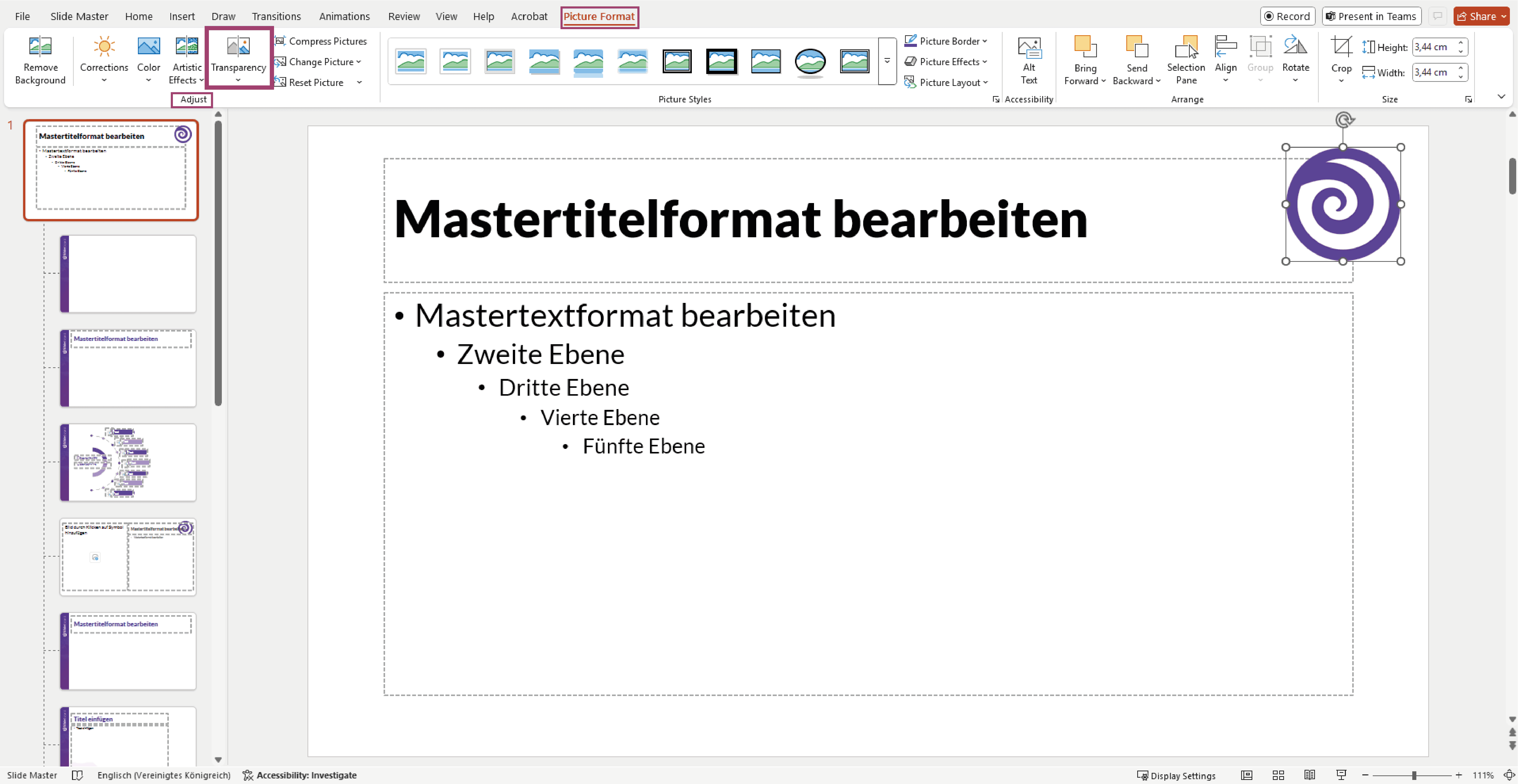
Place the logo wherever you like and adjust its size and transparency if needed:
Picture Format > Adjust > Transparency


4. Consistent presentations after rebranding: Create a slide library
After rebranding, a consistent look across all presentations is crucial. This ensures that every slide looks professional and your brand remains recognizable everywhere.
Create a range of slides
Once you’ve adjusted the master slide, you can now create different types of slides:
- Title slide
- Table of contents
- Text slides
- Image slides
- Chart slides
- Table slides
- Comparison slide
- Closing slide
Align headings and text boxes however you like.
Add design elements
To give your presentation a unique look, add additional design elements like images, shapes, lines, icons, etc.:
Insert > Illustrations > Shapes/Icons/SmartArt/Chart

Don’t forget to close the Slide Master when you’re done!
5. Save new design as a PowerPoint template (.potx & design templates)
To ensure your new design is used in the long term, you should save it as a template. This way, your team always has access and can create presentations that comply with your Corporate Identity in no time.
- Save as .potx – PowerPoint Template
File > Save As > PowerPoint Template (*.potx)
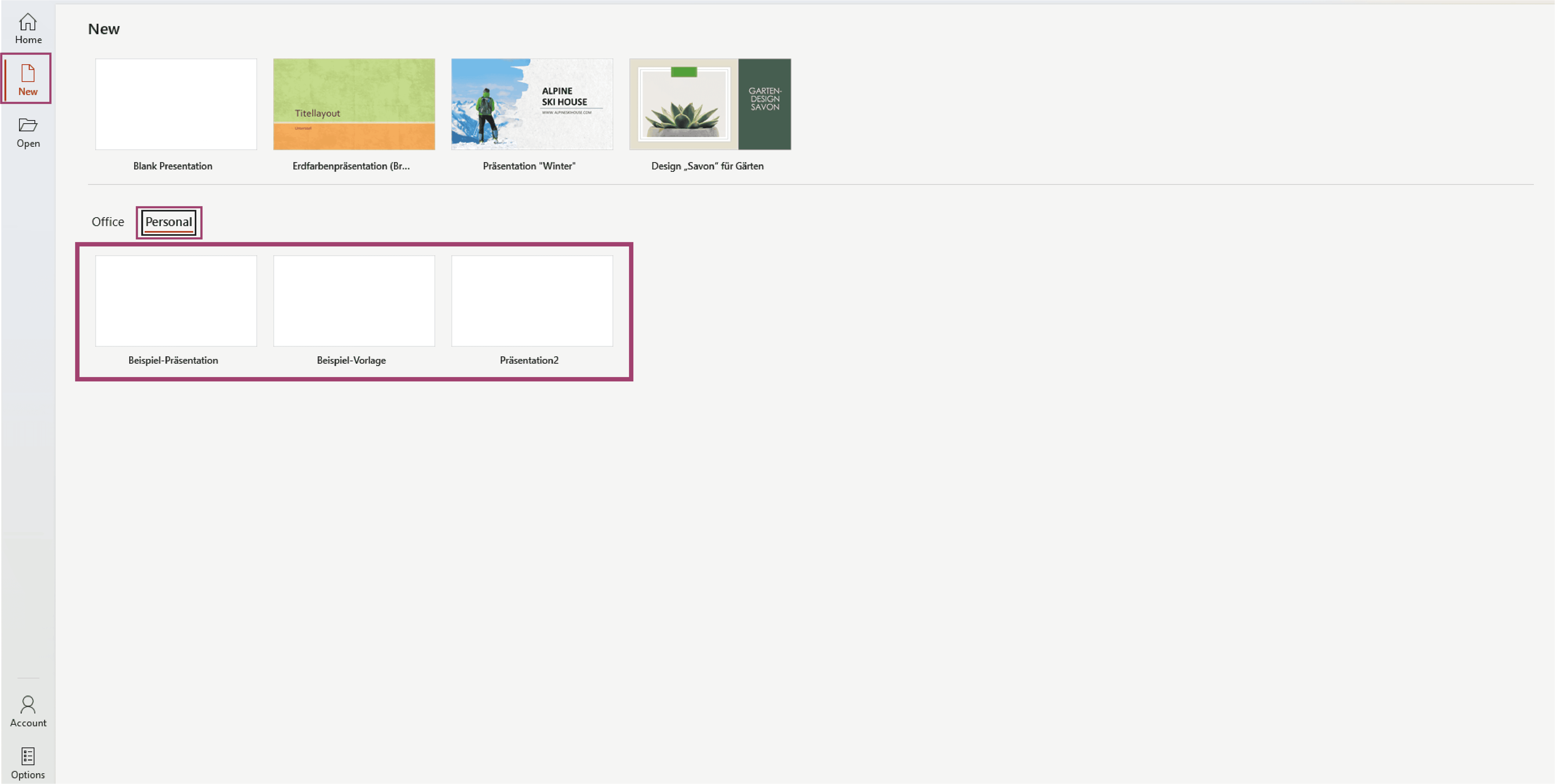
Save this file somewhere everyone can access it. This way, anyone can create a new presentation without changing the original. Here’s how:
File > New > Personal
- Save as a Design Theme
Design > Themes > click the dropdown arrow > Save Current Theme
Save it where suggested. When you return to PowerPoint, you’ll see a custom theme you just saved.

6. Rebranding in PowerPoint made easz – with SlideLizard CREATOR
A rebranding doesn’t have to be tedious and time-consuming. With SlideLizard CREATOR, you can apply your new corporate design quickly, efficiently, and above all consistently across all PowerPoint presentations.
The key to this is the CI rules that you can define directly in SlideLizard CREATOR. There you specify exactly:
- which fonts are allowed,
- which colors may be used,
- which logos and design elements are approved,
- and which ready-made templates and presentations comply with the new design.
These assets are centrally available in the library for all users and can be applied with just one click:
SlideLizard CREATOR > Intelligent functions > Show CI Guide
How exactly this works can be seen in this video:
A particularly useful feature: SlideLizard automatically detects when a presentation contains elements that do not comply with the current Corporate Design – for example, outdated colors, incorrect logos, or unauthorized fonts. These deviations are clearly marked and can be corrected with one click.
This saves you time-consuming manual adjustments and ensures that all presentations are truly CI-compliant – even those created before the rebranding.


